This is default featured slide 1 title

Go to Blogger edit html and find these sentences.Now replace these sentences with your own descriptions.This theme is Bloggerized by Lasantha Bandara - Premiumbloggertemplates.com.

This is default featured slide 2 title

Go to Blogger edit html and find these sentences.Now replace these sentences with your own descriptions.This theme is Bloggerized by Lasantha Bandara - Premiumbloggertemplates.com.

This is default featured slide 3 title

Go to Blogger edit html and find these sentences.Now replace these sentences with your own descriptions.This theme is Bloggerized by Lasantha Bandara - Premiumbloggertemplates.com.

This is default featured slide 4 title

Go to Blogger edit html and find these sentences.Now replace these sentences with your own descriptions.This theme is Bloggerized by Lasantha Bandara - Premiumbloggertemplates.com.

This is default featured slide 5 title

Go to Blogger edit html and find these sentences.Now replace these sentences with your own descriptions.This theme is Bloggerized by Lasantha Bandara - Premiumbloggertemplates.com.

Showing posts with label Share IT knowledge. Show all posts

Tuesday, September 10, 2013

WHAT IS TASK MANAGER, APPLICATION, SERVICES, PROCESSES AND HOW TO KILL UNRESPONSIVE TASK


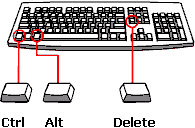
Whenever our beloved PC freezes, hangs or become unresponsive, the first thing which all of us do is pressCTRL+ALT+DELETE and selects a Task Manager option from the screen. I never met a guy who doesn't know about the Task Manager option in Windows. Still, if you have never heard about Task Manager, it's a utility in Windows which you can use to quickly recover your PC from unresponsive conditions. 
 
But that's not the only thing which you can do with the Task Manager utility, it has many more advanced features in it which we will discuss step by step.

Note: Task Manager has tons of options and it's difficult to explain each and everything in one article. In this article we will talk about some basics and then in the future articles we will see some advance options of it.

What are Applications, Processes And Services

Before going into details, it's necessary to understand the basic terminologies first to avoid the confusion.

1. Applications -- It's a program / software which you work on. (e.g. Word, Excel, Chrome, Internet Explorer etc.)

2. Services -- While you are working on Windows, browsing Internet, Printing Documents etc., there are many things which are running in the background making it possible for you to perform those tasks easily on your Computer. Those background things are called Windows Services. (For more detail info regarding services, Read : What Are Windows Services)

3. Processes -- Each application you open in Windows create one or many processes. These processes run in the background and helps the application to run properly in Windows. As soon as you exit the application / software, all of its related processes also get closed. But It's not necessary, for e.g. an antivirus software or a backup program starts automatically when you turn on a PC and its processes automatically run in the background without even opening the software each time. These processes (which starts automatically) act more like a service.

Processes and Services both run in the background, but have different meaning and purpose. To keep things simple, just keep this thing in mind that Services helps Processes to achieve the work which an Application is trying to do.

Why To Use Task Manager?

When you log in to Windows, there are many programs which starts at the startup and many services which runs in the background without your knowledge. Each application / software you open in Windows also creates one or many processes (tasks) in the background. Every PC has some limitation, doesn't matter how much RAM you have or how fast your Processor really is, you simply cannot run tons of software / applications at a time on it.

At the beginning you will not face any trouble using your PC, but after using Windows for some time (for many hours), you may feel some lag or slowness (that depends how many softwares you are concurrently working on). This may happen because all the services /  processes which are running in the background become insupportable by your PC's hardware. When any particular windows service or process from a software needs more resources from your PC and your Windows don't provide it because of any reason, that may cause Unresponsiveness / Hanging / Freezing Issue.

Note: PC can become unresponsive because of many reasons, but most of the time it's because of Windows Services / Application Processes. These problems can also occur because of Bad Hard Disk, read : Identify Problems Related To Hard Disks Health.

While working on Windows, if you feel any slowness, unresponsiveness, freezing etc. problem, then the quickest thing is to use the Task Manager utility. Using Task Manager, most of the time you can resolve application conflicts and software freezing issues.
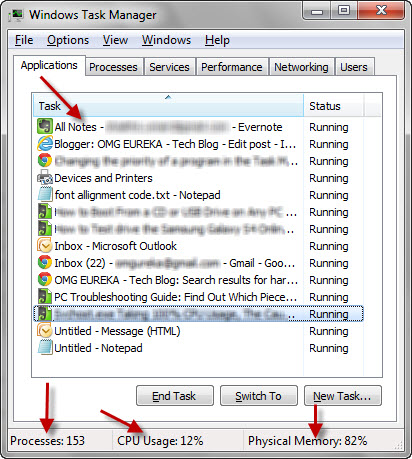
 
 
It's a first place which you should visit immediately to take a look at the Running Softwares, Processes and Services. You can also see how much busier your Processor and RAM really is. Beside all these, there are tons of other advance things which you can perform at Task Manager in order to quickly heal your PC from all the said problems.

Task Manager Basics -- Overview

Now let me explain you the basics of the Task Manager (more like an overview of it), which will help us to understand the advance features of it which will be discussed in the future articles.

How To Open Task Manager

1. Traditional method to open Task Manager is by pressing CTRL+ALT+DEL and then selecting the Task Manager option from the Screen.


2. The second method, which is quickest to achieve the same task is with the help of a keyboard shortcut. Press CTRL+SHIFT+ESC key and it will immediately bring the Task Manager window on the screen.

3. The third method which is not known to many people is, Right Click the Taskbar and select Start Task Manager option from the context menu.
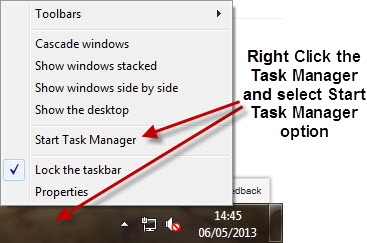
 

It's up to you to use the method which is more easy to you to open the Task Manager utility in Windows.

The Applications Tab

At the Applications Tab in the Task Manger, it will show you the list of those applications / softwares which are currently open in Windows.
 

This is the window from where you will kill those applications which are unresponsive and destabilizing the Windows. Most of the time it happens with our Web Browsers especially when we open multiple tabs on it, it suddenly becomes slow or unresponsive. In that case, quickly open the Task manager and look for the task which is showing as Not Responding. Select that task and then click End Task button.
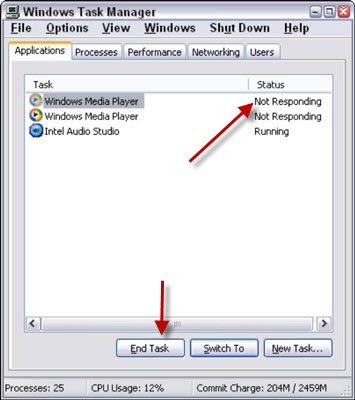
 

If it shows any warning message, simply click End Now button to close that application forcefully.
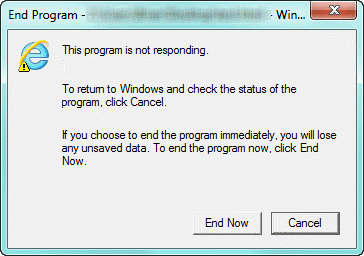
 

Note: Whenever a software freezes / hangs, just leave your mouse and keyboard immediately for the next 5 minutes and don't do anything. If your computer doesn't respond and the application doesn't become stable / normal by itself, then open the Task Manager and End that application by following the method told above.

Last Words

In this article I tried my best to explain you some complicated terminologies which often confuses to many advanced users as well and also explained how easily we can terminate any unresponsive task at the Applications Tab of the Task Manager. In the next article we will discuss other options of the Task Manager and will try to dig into more advance features of it.

Tuesday, May 14, 2013

The convertible Acer Aspire P3 Ultrabook With Tiësto.

Thursday, April 4, 2013

Top 6 Facebook Annoyances and How to Fix Them

Facebook changes features like Kim Kardashian changes husbands. Just when users get comfortable with the latest iteration of “New Facebook,” Zuckerberg and company go and change something else, drawing the ire of its millions of users. Here are six Facebook annoyances that are currently grinding our gears and ways to deal with each.

Problem #1: News Ticker Shoves TMI Updates in Your Face

Sarcastically called the “stalker feed” by some users, the News Ticker has replaced the News Feed. Right above their list of friends available to chat, users are assaulted by an ongoing barrage of inane news including everything their friends liked and what they commented on.
News Feed
Solution: Users looking to ditch the News Ticker can install Facebook News Ticker Remover (Google Chrome) or the Facebook Ticker Removal (Firefox) add-on which will automatically remove the offending feature.


Problem #2: Facebook Timeline Shares Your Worst Moments With the World

There used to be a time where you could just delete that embarrassing photo from Facebook, and if you were prone to drunk posting, you could rest easy in the knowledge that soon it would disappear from your timeline never to be seen again. With the new iteration of Timeline, every bad picture and misspelled status update will be on display forever.
Solution: While you might not be able to erase all those regrettable photos and statuses of yore, you can control who gets to see them. Simply pull down the menu next to the Home button on your Facebook page and click Privacy Settings then Timeline Viewer Settings. From there, scroll down to Limit the Audience for Past Posts column and hit the Manage Past Post Visibility tab. Click OK and your timeline goes from public to friends only.


Problem #3: Your Facebook Subscribers Keep Spamming You

People looking to make part of their private Facebook pages public can open themselves up to subscribers, people who can sign up to read your updates without being approved “friends.” Users can then follow those pages and hopefully have an invigorating exchange of ideas. However, many people are complaining of inordinate amounts of spam and inappropriate content filling their news feed.

Solution: Freedom from that unwanted spam is only a few clicks away. To turn off Facebook Subscribe, click on Subscriptions in the left side menu. From there, click Edit under Subscribers and switch On to Off.

Problem #4: Gallery Photos Take Too Long to Load

Remember when you could quickly and easily scroll through all your friends’ Facebook photos without being held up by slow loading times? Facebook took all the convenience and fun of scrolling through photos and replaced it with theater-style pop-up photos. Sure the image is bigger, but some images can take longer to load than others, making photo-cruising an unnecessary exercise in patience.

Solution: Installing Revert Facebook Photo Viewer on Google Chrome or Facebook Photo Theater Killer on Firefox will display your photos in Facebook Classic style. Firefox users must have the Greasemonkey add-on installed first.

Problem #5: Facebook Apps Share Too Much Info About You

By default, apps like Spotify, Ticketmaster and Foursquare share every tiny detail of your life with all of your friends. Instead of  just learning about a job promotion or a new relationship, all your contacts can now be privy to what tickets you purchased from Ticketmaster or what song you’re listening to on Spotify. It’s great for advertisers, but an overshare nightmare for everyone else.
Solution: Don’t want everyone to know you just listened to Kenny G. on Spotify? Just go to Privacy Settings, click Edit Settings next to Apps and Websites, and then hit Edit Settings by the Instant Personalizations Header.
Instant Personalization
From there, uncheck the “Enable instant personalization on all partner sites” tab.
Instant Personalization

Problem #6: Annoying App Invites

Facebook has become a haven for casual gamers who sink hours into tending their farms, building a criminal empire or creating villages for their virtual insect colonies. Unfortunately many of these misguided souls insist on inviting you to join the “fun,” sending you invite after invite to join the next big “Ville,” deluging your Facebook notifications and annoying you to no end.

Solution: Go to Privacy Settings and select Manage Blocking next to Blocked People and Apps.
Manage Blocking in Facebook
Then enter the offending person’s name in the Block App Invites field and voila! It’ll be game over for all those unwanted game invites.
Block App Invites

Friday, March 15, 2013

Keyboard Shorcuts (Microsoft Windows)

More than 100 Keyboard Shortcuts must read. SHARE IT........
Keyboard Shorcuts (Microsoft Windows)

1. CTRL+C (Copy)
2. CTRL+X (Cut)
3. CTRL+V (Paste)
4. CTRL+Z (Undo)
5. DELETE (Delete)
6. SHIFT+DELETE (Delete the selected item permanently without placing the item in the Recycle Bin)
7. CTRL while dragging an item (Copy the selected item)
8. CTRL+SHIFT while dragging an item (Create a shortcut to the selected item)
9. F2 key (Rename the selected item)
10. CTRL+RIGHT ARROW (Move the insertion point to the beginning of the next word)
11. CTRL+LEFT ARROW (Move the insertion point to the beginning of the previous word)
12. CTRL+DOWN ARROW (Move the insertion point to the beginning of the next paragraph)
13. CTRL+UP ARROW (Move the insertion point to the beginning of the previous paragraph)
14. CTRL+SHIFT with any of the arrow keys (Highlight a block of text)
SHIFT with any of the arrow keys (Select more than one item in a window or on the desktop, or select text in a document)
15. CTRL+A (Select all)
16. F3 key (Search for a file or a folder)
17. ALT+ENTER (View the properties for the selected item)
18. ALT+F4 (Close the active item, or quit the active program)
19. ALT+ENTER (Display the properties of the selected object)
20. ALT+SPACEBAR (Open the shortcut menu for the active window)
21. CTRL+F4 (Close the active document in programs that enable you to have multiple documents opensimultaneou sly)
22. ALT+TAB (Switch between the open items)
23. ALT+ESC (Cycle through items in the order that they had been opened)
24. F6 key (Cycle through the screen elements in a window or on the desktop)
25. F4 key (Display the Address bar list in My Computer or Windows Explorer)
26. SHIFT+F10 (Display the shortcut menu for the selected item)
27. ALT+SPACEBAR (Display the System menu for the active window)
28. CTRL+ESC (Display the Start menu)
29. ALT+Underlined letter in a menu name (Display the corresponding menu) Underlined letter in a command name on an open menu (Perform the corresponding command)
30. F10 key (Activate the menu bar in the active program)
31. RIGHT ARROW (Open the next menu to the right, or open a submenu)
32. LEFT ARROW (Open the next menu to the left, or close a submenu)
33. F5 key (Update the active window)
34. BACKSPACE (View the folder onelevel up in My Computer or Windows Explorer)
35. ESC (Cancel the current task)
36. SHIFT when you insert a CD-ROMinto the CD-ROM drive (Prevent the CD-ROM from automatically playing)

Dialog Box - Keyboard Shortcuts
1. CTRL+TAB (Move forward through the tabs)
2. CTRL+SHIFT+TAB (Move backward through the tabs)
3. TAB (Move forward through the options)
4. SHIFT+TAB (Move backward through the options)
5. ALT+Underlined letter (Perform the corresponding command or select the corresponding option)
6. ENTER (Perform the command for the active option or button)
7. SPACEBAR (Select or clear the check box if the active option is a check box)
8. Arrow keys (Select a button if the active option is a group of option buttons)
9. F1 key (Display Help)
10. F4 key (Display the items in the active list)
11. BACKSPACE (Open a folder one level up if a folder is selected in the Save As or Open dialog box)


Microsoft Natural Keyboard Shortcuts
1. Windows Logo (Display or hide the Start menu)
2. Windows Logo+BREAK (Display the System Properties dialog box)
3. Windows Logo+D (Display the desktop)
4. Windows Logo+M (Minimize all of the windows)
5. Windows Logo+SHIFT+M (Restorethe minimized windows)
6. Windows Logo+E (Open My Computer)
7. Windows Logo+F (Search for a file or a folder)
8. CTRL+Windows Logo+F (Search for computers)
9. Windows Logo+F1 (Display Windows Help)
10. Windows Logo+ L (Lock the keyboard)
11. Windows Logo+R (Open the Run dialog box)
12. Windows Logo+U (Open Utility Manager)
13. Accessibility Keyboard Shortcuts
14. Right SHIFT for eight seconds (Switch FilterKeys either on or off)
15. Left ALT+left SHIFT+PRINT SCREEN (Switch High Contrast either on or off)
16. Left ALT+left SHIFT+NUM LOCK (Switch the MouseKeys either on or off)
17. SHIFT five times (Switch the StickyKeys either on or off)
18. NUM LOCK for five seconds (Switch the ToggleKeys either on or off)
19. Windows Logo +U (Open Utility Manager)
20. Windows Explorer Keyboard Shortcuts
21. END (Display the bottom of the active window)
22. HOME (Display the top of the active window)
23. NUM LOCK+Asterisk sign (*) (Display all of the subfolders that are under the selected folder)
24. NUM LOCK+Plus sign (+) (Display the contents of the selected folder)
25. NUM LOCK+Minus sign (-) (Collapse the selected folder)
26. LEFT ARROW (Collapse the current selection if it is expanded, or select the parent folder)
27. RIGHT ARROW (Display the current selection if it is collapsed, or select the first subfolder)


Shortcut Keys for Character Map
After you double-click a character on the grid of characters, you can move through the grid by using the keyboard shortcuts:
1. RIGHT ARROW (Move to the rightor to the beginning of the next line)
2. LEFT ARROW (Move to the left orto the end of the previous line)
3. UP ARROW (Move up one row)
4. DOWN ARROW (Move down one row)
5. PAGE UP (Move up one screen at a time)
6. PAGE DOWN (Move down one screen at a time)
7. HOME (Move to the beginning of the line)
8. END (Move to the end of the line)
9. CTRL+HOME (Move to the first character)
10. CTRL+END (Move to the last character)
11. SPACEBAR (Switch between Enlarged and Normal mode when a character is selected)

Microsoft Management Console (MMC)
Main Window Keyboard Shortcuts
1. CTRL+O (Open a saved console)
2. CTRL+N (Open a new console)
3. CTRL+S (Save the open console)
4. CTRL+M (Add or remove a console item)
5. CTRL+W (Open a new window)
6. F5 key (Update the content of all console windows)
7. ALT+SPACEBAR (Display the MMC window menu)
8. ALT+F4 (Close the console)
9. ALT+A (Display the Action menu)
10. ALT+V (Display the View menu)
11. ALT+F (Display the File menu)
12. ALT+O (Display the Favorites menu)


MMC Console Window Keyboard Shortcuts
1. CTRL+P (Print the current page or active pane)
2. ALT+Minus sign (-) (Display the window menu for the active console window)
3. SHIFT+F10 (Display the Action shortcut menu for the selected item)
4. F1 key (Open the Help topic, if any, for the selected item)
5. F5 key (Update the content of all console windows)
6. CTRL+F10 (Maximize the active console window)
7. CTRL+F5 (Restore the active console window)
8. ALT+ENTER (Display the Properties dialog box, if any, for theselected item)
9. F2 key (Rename the selected item)
10. CTRL+F4 (Close the active console window. When a console has only one console window, this shortcut closes the console)


Remote Desktop Connection Navigation
1. CTRL+ALT+END (Open the Microsoft Windows NT Security dialog box)
2. ALT+PAGE UP (Switch between programs from left to right)
3. ALT+PAGE DOWN (Switch between programs from right to left)
4. ALT+INSERT (Cycle through the programs in most recently used order)
5. ALT+HOME (Display the Start menu)
6. CTRL+ALT+BREAK (Switch the client computer between a window and a full screen)
7. ALT+DELETE (Display the Windows menu)
8. CTRL+ALT+Minus sign (-) (Place a snapshot of the active window in the client on the Terminal server clipboard and provide the same functionality as pressing PRINT SCREEN on a local computer.)
9. CTRL+ALT+Plus sign (+) (Place asnapshot of the entire client window area on the Terminal server clipboardand provide the same functionality aspressing ALT+PRINT SCREEN on a local computer.)

Microsoft Internet Explorer Keyboard Shortcuts
1. CTRL+B (Open the Organize Favorites dialog box)
2. CTRL+E (Open the Search bar)
3. CTRL+F (Start the Find utility)
4. CTRL+H (Open the History bar)
5. CTRL+I (Open the Favorites bar)
6. CTRL+L (Open the Open dialog box)
7. CTRL+N (Start another instance of the browser with the same Web address)
8. CTRL+O (Open the Open dialog box,the same as CTRL+L)
9. CTRL+P (Open the Print dialog box)
10. CTRL+R (Update the current Web )

Wednesday, November 21, 2012

External flash for apple smartphone

Внешняя фотовспышка для яблочного смартфона (3 фото + видео)

Accessory for apple smartphone is equipped with an LED with 300 lumens, which will make high-quality images even in complete darkness. The gadget is compatible with the iPhone 4 and 4S, connected via a standard connector. There are three modes of brightness. Powered by two CR 123 batteries. Currently, the novelty is available for pre-order on Kickstarter, for $ 45.

Внешняя фотовспышка для яблочного смартфона (3 фото + видео)

Внешняя фотовспышка для яблочного смартфона (3 фото + видео)

Friday, October 12, 2012

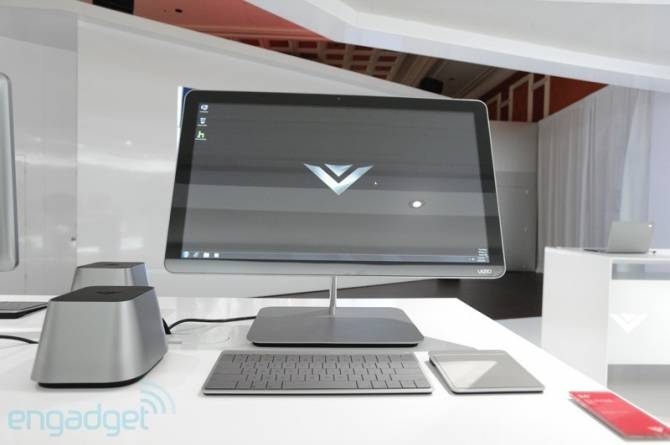
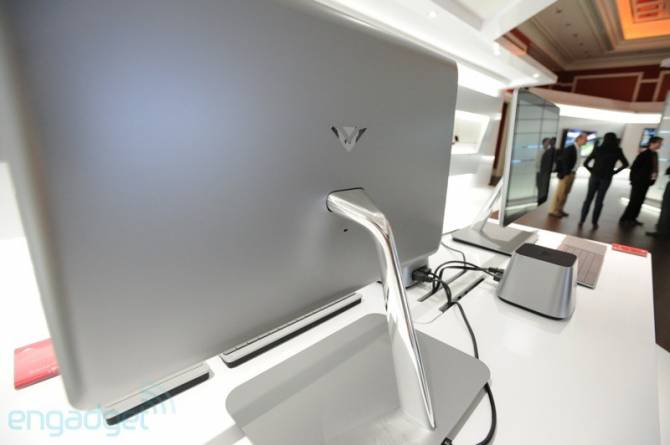
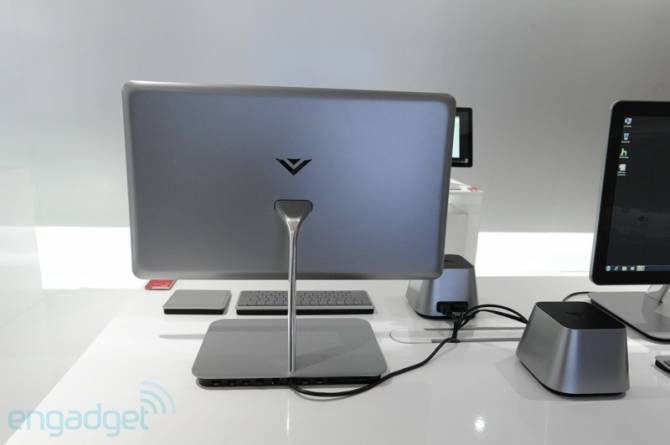
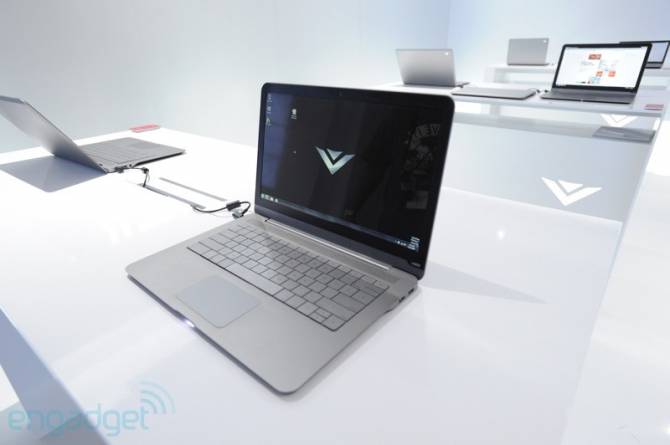
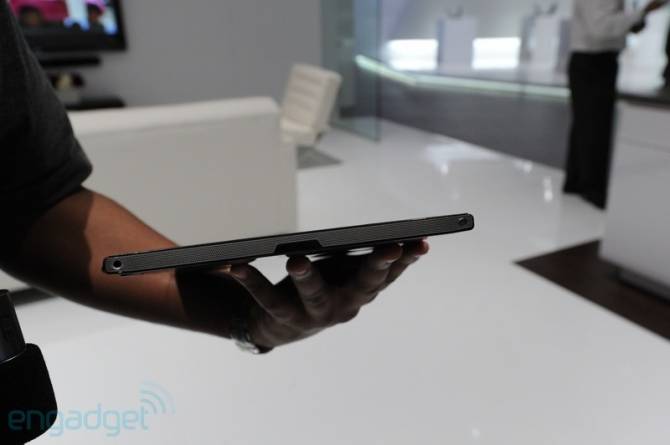
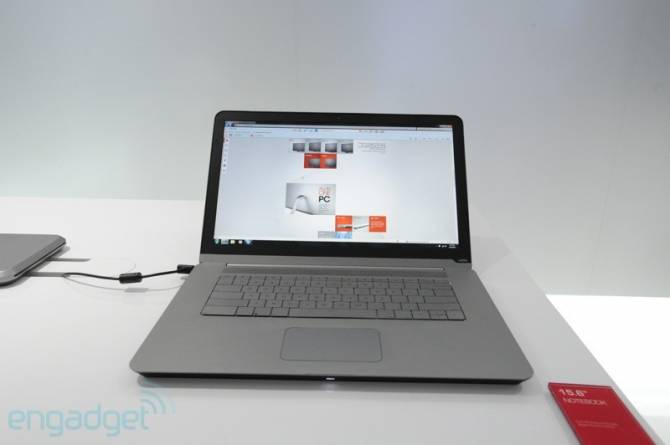
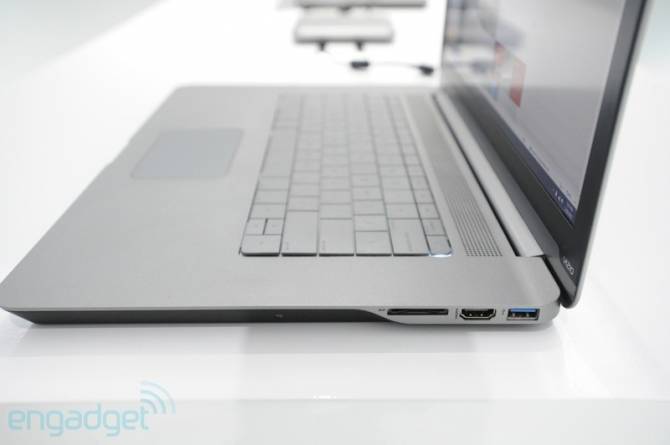
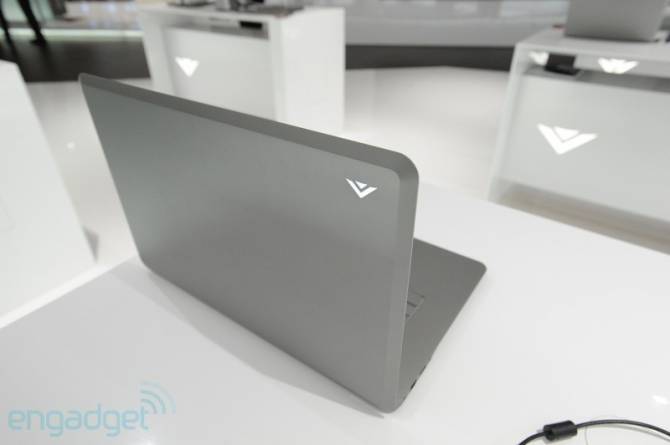
The first laptops and PCs from Vizio


Первые ноутбуки и ПК от Vizio (12 фото)

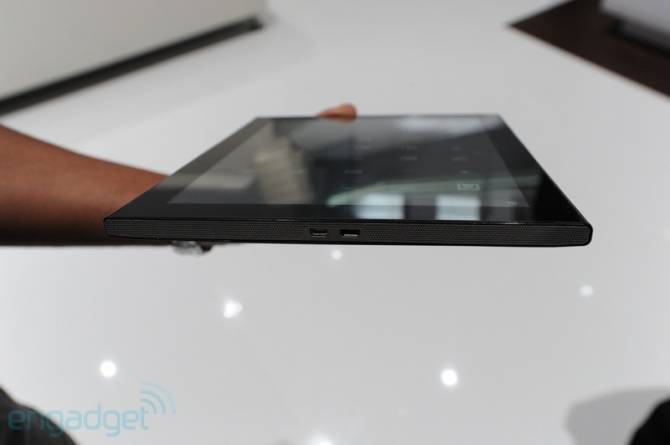
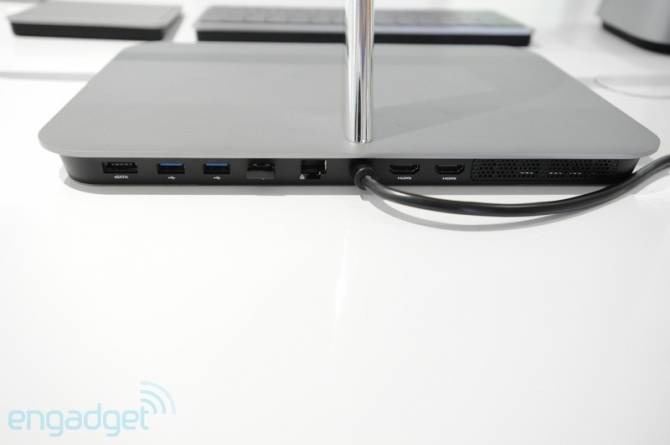
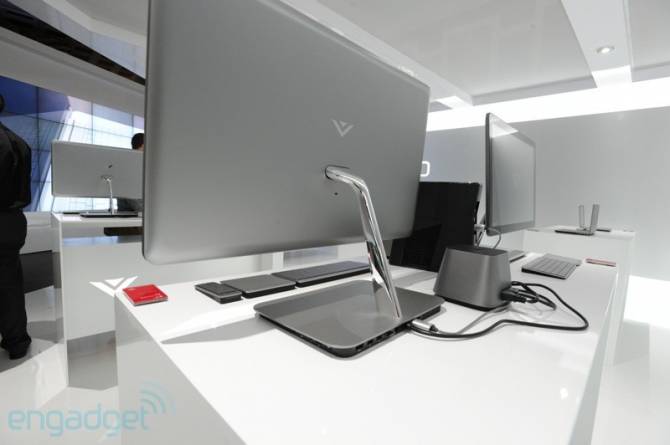
American Company Vizio, best known for their TVs and home theater systems, set to the production of notebook and desktop PCs. Already running an assembly line for the three ultra-thin laptop MacBook Air-style one-piece and two computers in an aluminum casing, with 24 - and 27-inch screens. In the sale of new items should be available before the end of this year.


Первые ноутбуки и ПК от Vizio (12 фото)


Первые ноутбуки и ПК от Vizio (12 фото)

Первые ноутбуки и ПК от Vizio (12 фото)

Первые ноутбуки и ПК от Vizio (12 фото)

Первые ноутбуки и ПК от Vizio (12 фото)

Первые ноутбуки и ПК от Vizio (12 фото)

Первые ноутбуки и ПК от Vizio (12 фото)

Первые ноутбуки и ПК от Vizio (12 фото)

Первые ноутбуки и ПК от Vizio (12 фото)

Первые ноутбуки и ПК от Vizio (12 фото)

Первые ноутбуки и ПК от Vizio (12 фото)

Thursday, July 12, 2012

Panasonic Lumix DMC-GF5 - update mirrorless camera

Panasonic Lumix DMC-GF5 - обновлённая версия беззеркальной камеры (6 фото)

New from Panasonic called the Lumix DMC-GF5 got a replacement camera Lumix DMC-GF3, and apparently they are practically does not differ. All the difference in the specifications mirrorless camera. The device is facilitated by 34 grams, the weight is now 230 grams, the maximum sensitivity of ISO 12800 enhanced mode, 3-inch touchscreen LCD-display with a resolution of 922,000 pixels (versus 460,000), autofocus, triggered after 0.09 seconds, the video in 1080p resolution at 60 f / s in the format of AVCHD, stereo, and an improved interface. The only thing worse - is the work of the battery. If a previous version of the camera could have been done 340 shots, but now only 320. No change was only a 12.1 Megapixel Live MOS sensor standard Micro 4/3. The camera will be available in black, white and red colors at a price of $ 600 for the "body" version, or $ 750 for the version with zoom lens 14-42 mm.

Panasonic Lumix DMC-GF5 - обновлённая версия беззеркальной камеры (6 фото) Panasonic Lumix DMC-GF5 - обновлённая версия беззеркальной камеры (6 фото) Panasonic Lumix DMC-GF5 - обновлённая версия беззеркальной камеры (6 фото)Panasonic Lumix DMC-GF5 - обновлённая версия беззеркальной камеры (6 фото)Panasonic Lumix DMC-GF5 - обновлённая версия беззеркальной камеры (6 фото)Panasonic Lumix DMC-GF5 - обновлённая версия беззеркальной камеры (6 фото)


Source: dpreview

Friday, January 20, 2012

Gold From The Computer Processor

Gold From The Computer Processor (24 Photos)

It aapears, the there is some gold inside a computer processor and with the help of several manipulations you can get it out of the processor. This is the instruction how you can do this.

Gold From The Computer Processor (24 Photos)

Gold From The Computer Processor (24 Photos)

Gold From The Computer Processor (24 Photos)

Gold From The Computer Processor (24 Photos)


Gold From The Computer Processor (24 Photos)

Gold From The Computer Processor (24 Photos)

Gold From The Computer Processor (24 Photos)

Gold From The Computer Processor (24 Photos)

Gold From The Computer Processor (24 Photos)


Gold From The Computer Processor (24 Photos)

Gold From The Computer Processor (24 Photos)

Gold From The Computer Processor (24 Photos)

Gold From The Computer Processor (24 Photos)

Gold From The Computer Processor (24 Photos)